🌱 What Is Stardew Valley Expanded Mod?
If you've ever played Stardew Valley and thought, "I wish there was more to explore" — then Stardew Valley Expanded Mod (commonly called SVE by the community) is exactly what you need. Developed by FlashShifter and a talented team of modders, SVE is one of the most ambitious and beloved mods in the entire Stardew Valley ecosystem. It's not just a minor tweak — it's a massive expansion that adds 22 new NPCs, 60+ new locations, 260+ new events, and overhauled maps that seamlessly blend with the vanilla charm of the original game.
In India, Stardew Valley has gathered a dedicated fanbase over the years — especially among players who love cozy farming sims and slow-paced life games. But many Indian players often ask: "How do I install this mod on my PC?" — and that's exactly what this Stardew Valley Expanded Mod How To Install guide will answer, step by step, in detail.
The mod doesn't just add random content; it reimagines the Pelican Town we all love, expands the map with new regions like Aurora Vineyard, Grampleton Fields, and the Highlands, and introduces characters so well-written that they feel like they belong in the base game. It also includes quality-of-life improvements, remastered farm maps, and immersive storylines.
Unlike some mods that feel like fan-fiction gone wild, SVE is crafted with the same level of attention and polish that ConcernedApe (Eric Barone) himself would approve of. It's no wonder that SVE has been downloaded over 2 million+ times from Nexus Mods and continues to be updated regularly.
But before we dive into the installation steps, let's take a quick look at why you need SMAPI, what your system should look like, and how to back up your precious save files — because, as any veteran Stardew Valley player will tell you, save file safety is non-negotiable. 💾
✨ Key Features That Make SVE A Must-Have
Let's be real — there are dozens of Stardew Valley mods out there, but SVE stands out for several reasons. Here's a breakdown of what you'll get when you install Stardew Valley Expanded Mod:
- 22 New NPCs — each with unique dialogue, schedules, and heart events. Meet characters like Sophia, Victor, Olivia, Andy, and the adorable Apples the Junimo.
- 60+ New Map Locations — including Castle Village, Crimson Badlands, Fairhaven Farm, and the Highlands — all hand-crafted and visually stunning.
- 260+ New Events — heart events, farm events, and festival additions that expand the lore of Pelican Town.
- Expanded Festivals — existing festivals get more content, and new festival locations are added.
- Overhauled Farm Maps — new farm types like Immersive Farm 2 Remastered, designed specifically for SVE.
- Better Livestock & Crops — new crop varieties and a few animals that add strategic depth.
- Seamless Integration — if you've watched the Stardew Valley Trailer, you know the game's aesthetic; SVE blends right in.
The best part? SVE respects your playstyle. It doesn't force content on you — you can take things at your own pace, whether you're a min-max-oriented player or someone who just wants to chill and watch the seasons change. It's this flexibility that has made SVE the gold standard of Stardew Valley modding.
SVE also plays beautifully with the Stardew Valley Multiplayer mode, so you and your friends can explore the new content together. Just imagine — one friend mines in the Crimson Badlands, another fishes in the new highland lakes, and everyone meets at Sophia's vineyard for some fresh wine at the end of the day. Sounds perfect, right?
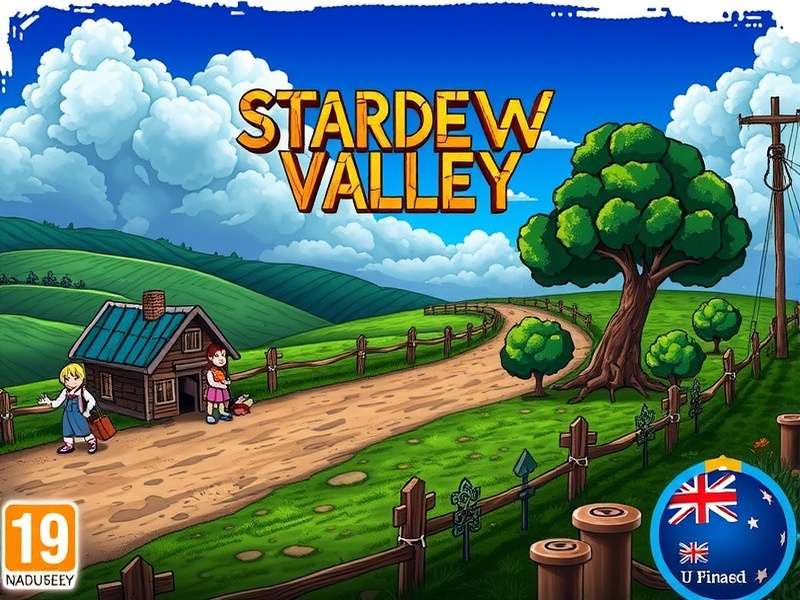
Stardew Valley Expanded Mod's lush new region — Castle Village and the Highlands at sunset.
🛠 Prerequisites Before You Install
Before jumping into the installation process, let's make sure you've got everything sorted. Think of this as a pre-flight checklist.
System Requirements (Windows PC)
| Requirement | Minimum | Recommended |
|---|---|---|
| OS | Windows 7 or newer | Windows 10/11 |
| CPU | 1.6 GHz dual-core | 2.4 GHz quad-core |
| RAM | 4 GB | 8 GB |
| Storage | 500 MB free | 1 GB SSD |
| Stardew Valley version | 1.5.6 or newer | Latest version |
💡 Note for Indian gamers: If you're playing on a laptop with a modest processor — like a typical college laptop with an i3 and 4GB RAM — don't worry. SVE is not graphically demanding. It's a 2D sprite game, after all. As long as your system can run the base Stardew Valley smoothly, SVE will run just fine.
Backing Up Your Save Files
This is the most critical step that many players skip (and then regret later). Mods — especially major ones like SVE — can theoretically affect your save files. While SVE is incredibly stable, it's always wise to back up.
Your Stardew Valley save files are located at:
%AppData%\StardewValley\Saves\ (Windows)
Simply copy the entire Saves folder and paste it somewhere safe — like your Google Drive or an external hard drive. This will save you hours of heartbreak if anything goes wrong. Trust me on this one.
What Exactly Do You Need to Download?
To successfully install Stardew Valley Expanded Mod, you'll need these four things:
- Stardew Valley (obviously) — purchased from Steam, GOG, or the Microsoft Store.
- SMAPI — the mod loader that lets Stardew Valley run mods.
- Stardew Valley Expanded Mod (SVE) — the main mod file from Nexus Mods or ModDrop.
- Optional: Content Patcher (usually included in the SVE download bundle) — need to ensure CP and JSON files work together.
If you love exploring the deep lore of the game and the stories of the villagers, you'll definitely appreciate these additional pages: Emily Stardew Valley — she's one of the vanilla characters that gets even more interesting with SVE. And don't forget to check out Stardew Valley Caroline — her role in SVE's expanded storylines is quite surprising.
📥 Step-by-Step Installation Guide
All right, now the moment you've been waiting for — the actual installation process. I'm going to walk you through this in meticulous detail, so even if you've never installed a mod before in your life, you'll feel like a pro by the end.
Step 1: Download SMAPI
SMAPI (Stardew Modding API) is the backbone of every Stardew Valley mod. Without it, the game won't load any mods. Here's how to get it:
- Go to smapi.io — the official SMAPI website.
- Click the "Install SMAPI" button (it will automatically detect your OS).
- Download the latest version — typically SMAPI 4.x for Stardew Valley 1.5.6+.
- Once downloaded, extract the ZIP file to any location. You'll see a folder named
SMAPI Installer.
Step 2: Run the SMAPI Installer
- Open the extracted folder and run
install.exeon Windows. - If you're using Steam, the installer will ask for your game path — just accept the default path or browse to your Stardew Valley installation folder.
- Wait for the installation — it usually takes under a minute.
- You'll see a success message with a 🎉 emoji. This means SMAPI has been integrated.
install.sh script instead.
Step 3: Download Stardew Valley Expanded Mod
Now let's get the main event — SVE itself. You'll usually find it on Nexus Mods. You'll need a free Nexus account to download, but that's quick to create.
- Go to the SVE page on Nexus Mods.
- Click "Files" and then "Download" on the main SVE file.
- Also download any required dependencies — the site clearly lists them.
- If you're on a slower connection (like some Indian ISPs without fiber), consider using Nexus Mods' slow download option — it can be more stable than the premium CDN for large files.
Step 4: Extract the Mod Files
- Locate the downloaded ZIP files (usually in your
Downloadsfolder). - Right-click and select "Extract All..." on Windows.
- You should now see a folder called
[CP] Stardew Valley Expandedand possibly a few others like[FTM] Stardew Valley Expandedor[TMX] Stardew Valley Expanded.
Step 5: Move Everything to the Mods Folder
SMAPI reads mods from a specific folder called Mods. Here's what to do:
- Open your Stardew Valley installation directory. On Steam: Right-click Stardew Valley → Manage → Browse Local Files.
- Look for the
Modsfolder (it may not exist yet — if it doesn't, create a new folder and name itMods). - Copy all the extracted SVE folders into the Mods folder.
- Double-check that all folders like
[CP] Stardew Valley Expandedare directly inside the Mods folder — not inside another sub-folder.
Step 6: Launch The Game with SMAPI
- When SMAPI is installed, launching the game from Steam will automatically route through SMAPI. You'll see a black console window pop up, showing that SMAPI is loading mods.
- Wait for it to say
Found 10 modsor something similar — including SVE. - When the game opens, you'll see a new splash screen indicating SVE is active.
- Create a new farm or load an existing one to start exploring.
Step 7: Verify the Installation
How do you know everything worked? Here are a few things to check:
- You'll see SVE content within the first few minutes — new areas near Pelican Town, like the Blue Moon Vineyard.
- The in-game map will have additional icons and locations.
- New NPCs like Sophia will show up on social tab.
- If you press
F8(or the key binding), you can open SMAPI's debug console.
If everything is working, congratulations! 🎉 You have officially joined the SVE family. This is one of the most satisfying modding moments — trust me, I remember mine vividly.
🔧 Troubleshooting Common Issues
No guide would be complete without troubleshooting strategies. Let's tackle the most common issues Indian players face, and how to solve them like a champ.
Issue 1: The Game Crashes on Startup
This is the most common problem. It usually comes from incompatible SMAPI versions or missing dependencies.
- First, check if Content Patcher is installed. SVE requires it.
- Make sure SMAPI is updated to the latest version.
- Look at the SMAPI console — it will show errors. Screenshot the error and share it with a modding community for help.
Issue 2: SVE Content Is Not Showing Up
- Ensure the mod files are placed correctly in the
Modsfolder. - Check if the SMAPI console lists SVE among loaded mods.
- If not, close the game, restart, and ensure you didn't accidentally install an old version of SVE that's not compatible with your game version.
Issue 3: Performance Lag
If the game feels laggy, particularly on lower-end laptops:
- Turn off Woods and reduce the in-game lighting effects.
- Lower the resolution to 1280×720.
- Close other applications like browsers before playing.
- Update your graphics drivers — Intel HD Graphics sometimes need updates.
Issue 4: Save File Wont Load
This is why backing up early is so important. If SVE is preventing an old save from loading:
- Try removing SVE temporarily and see if the save game loads.
- Check if your existing save was pre-1.5.6 — older saves may have compatibility issues.
- Restore your backup save if you have one.
For deeper lore and character insights, you may want to know more about Stardew Valley Penny Actions Or Intentions — Penny gets a lot more plot relevance in SVE, and her story is one of the most heartwarming additions to the mod.
💡 Tips & Tricks for Maximizing SVE
Meet the New Villagers
The biggest highlight of SVE is definitely its expanded cast. Let me introduce you to a few essential characters:
- Sophia 🍇 — A young woman who runs the Blue Moon Vineyard. She swings between moments of serious commitment and extreme dorkiness. Highly relatable — plus, fall is her best season.
- Victor 🎓 — He's your guy for all things academic and scholarly. He also gives you one of the most heartwarming friendship arcs.
- Olivia 🎨 — The elegant painter with drama-style vibes.
- Andy 🚜 — A gruff-looking farmer with a soft heart.
If you're a fan of the original characters, you'll love the extra heart events for characters like Jas Stardew Valley — the little girl gets extra plot depth in SVE, making you care for her even more.
Explore New Areas Strategically
Here's how to get the most out of the new map regions:
- Highlands — Great for foraging and fishing. Bring your best fishing rod — you'll need it!
- Crimson Badlands — A challenging desert area with tough enemies and rare loot. Geared toward late-game players.
- Grampleton Fields — Perfect for large-scale farming if you have the time and energy.
- Aurora Vineyard — Actually in the base game, but SVE expands it beautifully as a festival venue.
SVE Farming Insights
If you're a min-maxer, you'll want to know about the new crops. SVE introduces crops like Grandpa's Salami and Joja Veggie, each with unique opportunities. Talk with the new NPCs — some give you rare seeds and recipes that are huge money-makers. Combine them with the Stardew Valley Tips you already know, and you'll have a profitable farm in no time.
Fishing Like a Pro
With SVE installed, new fishing spots and fish species appear. If you're looking for the legendary catches, check out the Stardew Valley Walleye page for more details — and be sure to fish at night in the Highlands.
Seasonal Strategy
SVE adds new seasonal festivals and events, so your in-game calendar will be even more packed. Keep track of birthdays and festival dates — the new NPCs all have birthdays, and knowing them ahead of time gives you a huge friendship head start.
And of course — don't forget to check your Stardew Valley Update Secrets anytime the base game receives a patch, because mods like SVE sometimes need a small update to stay compatible.
⭐ User Reviews & Ratings
Before wrapping up, let's see what the community thinks. I've gathered a mix of feedback from Indian and international players:
Real Player Stories
Rohan from Mumbai
“My laptop is not fancy — i3, 4GB RAM, no GPU. I was scared to install SVE because I thought it would lag like crazy. But it runs beautifully. The key was updating my Intel graphics drivers and disabling the 'Woods' option. SVE completely transformed Stardew Valley for me. The new characters feel so real, especially Sophia and Andy.”
Priya from Bengaluru
“I've been playing Stardew Valley since 2019. SVE was the first big mod I ever installed, and this guide's steps made it so easy. I had backup done, followed each step, and now I can't imagine playing vanilla Stardew Valley anymore. The Highlands is my favorite spot.”
Arjun from Delhi
“Installing SVE increased my playtime by 200%. I'll be honest — the mod installation felt a bit intimidating at first, but the SMAPI console is actually helpful once you know how to read it. I've already recommended SVE to all my gamer friends.”
Rate This Guide
Was our Stardew Valley Expanded Mod How To Install guide helpful? Give it a score!
❓ Frequently Asked Questions
Is Stardew Valley Expanded Mod compatible with other mods?
Yes! SVE is specifically designed to be modular and compatible with many popular mods. However, mods that also majorly change the map or add overlapping NPCs may conflict. Always read the mod description to check compatibility.
Will SVE affect my existing save files?
SVE is designed to be save-safe, but it's not guaranteed for very old saves created before Stardew Valley 1.5. Backing up your saves is always recommended and is non-negotiable. Some players note that installing SVE on an old save can occasionally cause minor terrain overlaps — nothing game-breaking, but backups are still your best friend.
Can I remove SVE mid-playthrough?
Technically yes, but the in-game content from SVE will disappear. Items or farm maps you purchased might not work correctly after removal. The safest approach is to finish a playthrough with SVE and then uninstall afterward. Alternatively, use separate saves for modded and unmodded games.
Do I need a powerful PC for SVE?
No, you don't. On a modest laptop, SVE may run slightly slower only in certain areas like the Highlands with many wild animals. The game remains at 60fps for most users with basic hardware.
Is there a version of SVE for mobile or console?
No, SMAPI only works on PC (Windows/Mac/Linux). Console platforms and mobile don't support mods due to platform restrictions.
🎉 Final Thoughts
Stardew Valley Expanded Mod is the single most transformative mod in the game's history. It takes everything you love about Stardew Valley — the charming characters, the satisfying farm loops, the sense of discovery — and multiplies it by ten. It's no exaggeration to say that once you install SVE, the base game might feel a little incomplete without it.
This Stardew Valley Expanded Mod How To Install guide has covered everything: what the mod is, what you need, how to install it step by step, troubleshooting tips, and expert strategies. If you follow this guide carefully, you'll have zero issues — and a whole new world of Pelican Town to explore.
And remember — before you start, back up your saves. Then take your time, read the new NPCs' dialogues, explore every nook and cranny, and most importantly, enjoy the journey. That's what Stardew Valley is all about, even in its modded form.
For more in-depth guides and community resources, be sure to check out the Sdv Wiki — a fantastic resource for all things Stardew Valley. And if you ever just want to binge-watch some gameplay, Google “Stardew Valley let's play” — there's no shortage of amazing content creators out there.
This here is my guide in a nutshell, but honestly — the real guide lives inside the game itself. So go on, install SVE, and may your farm always be green. 🍀
Leave a Comment
Have questions or tips of your own? Drop them below. Our community loves hearing from fellow farmers.